 Power
Why is my phone draining so fast?
“My battery dies by mid-afternoon” can mean very different things: an app that never sleeps, a weak mobile signal, a bright screen, or a battery that has simply worn out. Guessing wastes time. This step-by-step check narrows it down.
In short
- Split drain into screen on and standby. They have different causes.
- A healthy phone in standby loses about 0.3–0.8% an hour. Much more than that means something is keeping it awake.
- High screen-on drain is usually the screen itself or a few heavy apps.
- If both look normal but the day is still short, the battery may be worn.
Step 1: split screen-on from standby
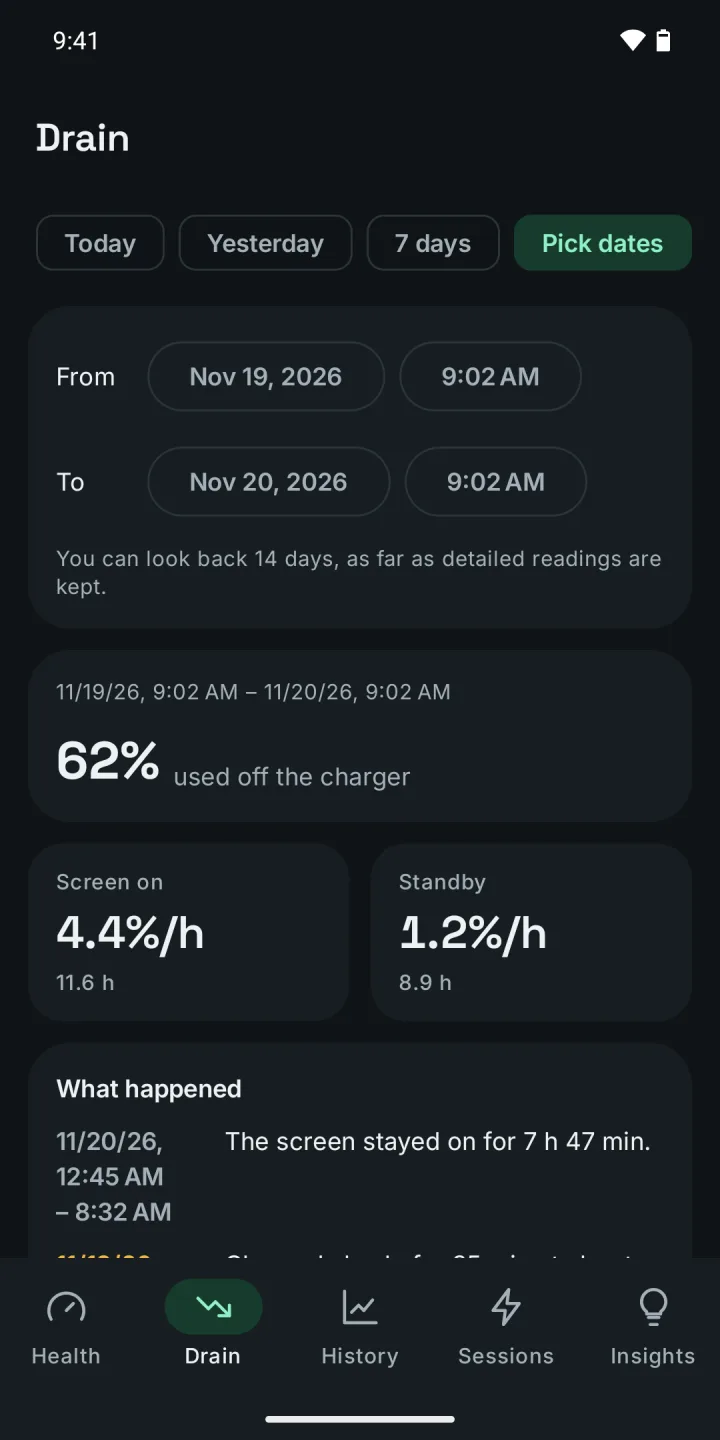
Your phone spends its day in two very different states. With the screen on, the display, processor and radios are all busy. With the screen off, a well-behaved phone sleeps most of the time and wakes only briefly for messages and sync.
Work out the drain per hour for each. Note the battery level and time when you put the phone down at night, then again in the morning. That gives you standby drain. Screen-on drain is harder to measure by hand, because you need to total the time the screen was on.
- Standby above about 1% an hour: go to step 3. Something is keeping the phone awake.
- Standby normal, but the battery falls fast in use: go to step 2.
- Both look reasonable: go to step 5 and check the battery's health.
Step 2: high drain while you use the phone
Screen-on drain varies a lot with what you do. Reading or messaging is light. Games, video calls, navigation, the camera and hotspot use are heavy. Common causes of higher drain than you'd expect:
- Brightness. The display is often the largest single consumer. Turn on adaptive brightness, and use dark mode if your phone has an OLED screen.
- Refresh rate. 90 or 120 Hz screens look smoother but use more power. Most phones have a setting for this under Settings → Display.
- One or two heavy apps. Look at which apps were on screen while the battery dropped fastest. Social video apps, games and navigation are typical.
- Weak signal while you use data. Streaming over a poor mobile connection costs far more than over Wi-Fi.
Step 3: high drain in standby
If your phone loses several percent an hour while it sits on a table, something is waking it up or keeping it awake. Check these, roughly in order of how often they're the cause:
- Weak mobile signal. In a basement, a rural area or a building with thick walls, the phone raises its radio power and keeps searching for a better tower. This alone can double standby drain. If you're on Wi-Fi at home, Wi-Fi calling can help.
- An app running in the background. Messaging, fitness, smart-home and VPN apps sometimes keep working when they shouldn't, especially right after an update.
- Location and scanning. Apps with “Allow all the time” location access, and Wi-Fi or Bluetooth scanning, wake the phone regularly.
- Sync. Several email or cloud accounts that sync constantly add up.
- The screen didn't turn off. “Stay awake” in Developer options keeps the screen on while charging. Some apps also hold the screen on and forget to release it.
Step 4: find the app and fix it
Android's own battery screen is at Settings → Battery → Battery usage. It lists apps by their share of the battery since the last full charge. That's useful, but it mixes screen-on and background use, and it shows percentages rather than how much charge each app cost.
Once you have a suspect:
- Update or restart it. Force stop the app, or simply restart the phone. A stuck process after an update is a common cause and the easiest to fix.
- Limit its background use. Open Settings → Apps → [the app] → App battery usage (the name varies by phone) and choose Optimized or Restricted. Restricted apps may deliver notifications late, so keep messaging apps on Optimized.
- Remove permissions it doesn't need. Change location from “all the time” to “only while using the app”.
- Check the next day. Compare standby drain overnight. If it hasn't improved, move on to the next suspect.
Step 5: if nothing stands out, check the battery
A battery at 75% health holds a quarter less charge than when it was new, so every hour of use takes a bigger bite out of the percentage. If your screen-on and standby drain look normal but the day is still short, check your battery's health.
How PowerTailor helps
- Splits drain into screen on and standby per hour, and tells you whether standby is healthy
- Any time range: the last hour, today, last night, a week, or your own dates and times
- Per-app battery use in mAh, with screen time, how often you opened each app and its background data
- Drain detective (Pro) shows apps running in the background and why, with one-tap fixes it checks afterwards