 Power
Phone plugged in but not charging?
You plug in at night and wake up to 40%. Or the phone says it's charging, but the percentage keeps falling. Charging problems rarely fail all at once. They flicker for weeks first. Here's how to find the cause, starting with the quickest checks.
In short
- First rule out a built-in charge limit or a hot battery. Both pause charging on purpose.
- Lint in the USB-C port is the most common physical cause, and it's free to fix.
- Swap the cable, then the charger, to find which part is at fault.
- If the connection flickers when you move the plug, the cable or the port is worn.
1. Is it paused on purpose?
Modern phones stop charging before 100% in some situations, to protect the battery. That looks exactly like a fault if you don't know about it.
- Charge limits. Many phones can hold the battery at 80% or 85%. On Pixel phones, Adaptive charging also holds around 80% overnight and finishes just before your alarm. Samsung calls its setting Battery protection or Protect battery. Check Settings → Battery for options with names like these.
- Heat. When the battery gets hot, phones slow or pause charging until it cools. This happens in a hot car, under a pillow, in direct sun, or while gaming on the charger.
- Moisture. Some phones, including Samsung Galaxy models, block wired charging when they detect moisture in the port. Let it dry completely. Don't use heat to speed it up.
2. Clean the USB-C port
Pocket lint packs into the bottom of the port over months, until the plug no longer seats fully. The plug feels like it clicks in, but the contacts barely touch.
- Turn the phone off.
- Shine a light into the port. A grey or dark layer at the bottom is compacted lint.
- Loosen it gently with a wooden toothpick or a plastic tool, working along the walls and lifting the lint out. Never use metal (pins, needles, paper clips), and never use liquid.
- Plug in again. If the plug now goes in noticeably further, you've found the problem.
3. Swap the cable, then the charger
Change one thing at a time so you know which part was at fault.
- Cable first. Cables wear at the ends, where they bend. A cable that works for some phones can still fail for another.
- Then the charger. Old 5 W adapters and computer USB ports can't keep up with a modern phone in use. A USB-C Power Delivery charger of 18 W or more charges most current phones properly.
- Wireless: check the phone sits centred on the pad and that the case isn't too thick. Metal plates, magnets and cards in the case block wireless charging.
4. The wiggle test: cable or port?
With the phone charging and the screen on, move the plug gently up, down and sideways. If charging stops and starts, or the charging sound repeats, the connection is breaking.
- Flickers with one cable but not another: the cable is worn. Replace it.
- Flickers with every cable: the phone's port is worn or damaged. A repair shop can replace it. On many phones it's a common, relatively quick repair.
5. Charging, but losing charge anyway
If the phone shows it's charging but the percentage still falls, the phone is using power faster than the charger supplies it. This is typical for a weak charger combined with heavy use: games, navigation, video calls, hotspot.
It also happens when the screen stays on all night. If you've turned on Developer options, check the Stay awake setting there (usually under Settings → System → Developer options). If it's on, the screen never turns off while charging. Turn it off unless you need it.
6. When to stop and get help
Stop charging and have the phone checked if the battery is swollen (the screen or back panel lifts), the phone gets very hot, you smell burning, or you see scorch marks on the plug or port. Don't keep using a damaged cable or charger.
How PowerTailor helps
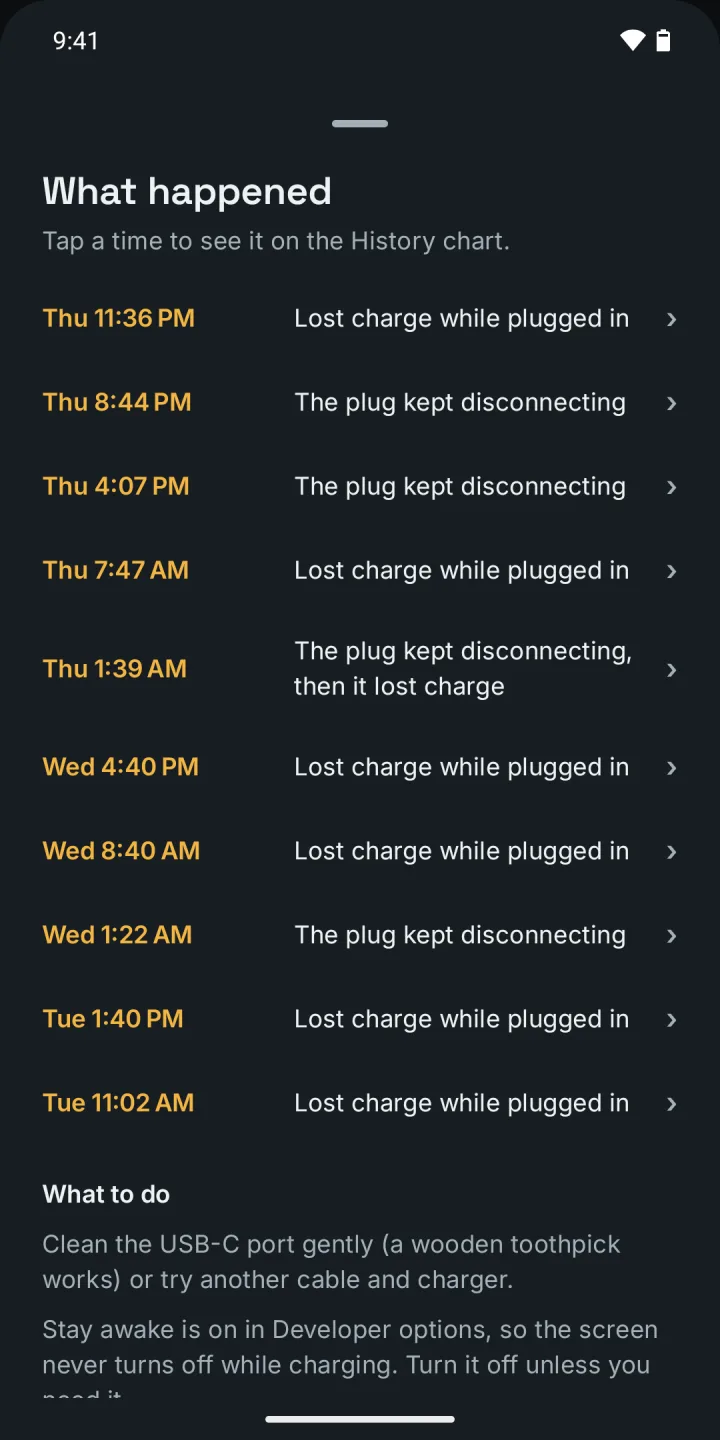
A worn port or tired cable shows a pattern before it fails completely. PowerTailor watches every charge and notices:
- The plug keeps disconnecting, a sign of a loose cable or port
- Plugged in but losing charge, when the charger can't keep up
- Slow charging compared with how fast your phone usually charges
- The screen stayed on all night while charging
It alerts you while it's happening, again before the battery runs out, and once a week if it keeps happening. The “What happened” timeline shows each event, and you can tap one to see it on the History chart.
Get it on Google Play